How to Log Into Adobe Acrobat
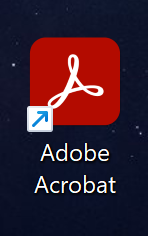
1. Open Adobe Acrobat.
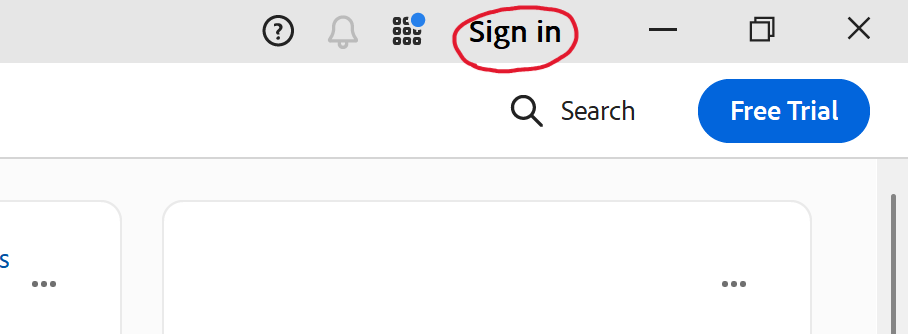
2. Click “Sign In” in the upper right corner.
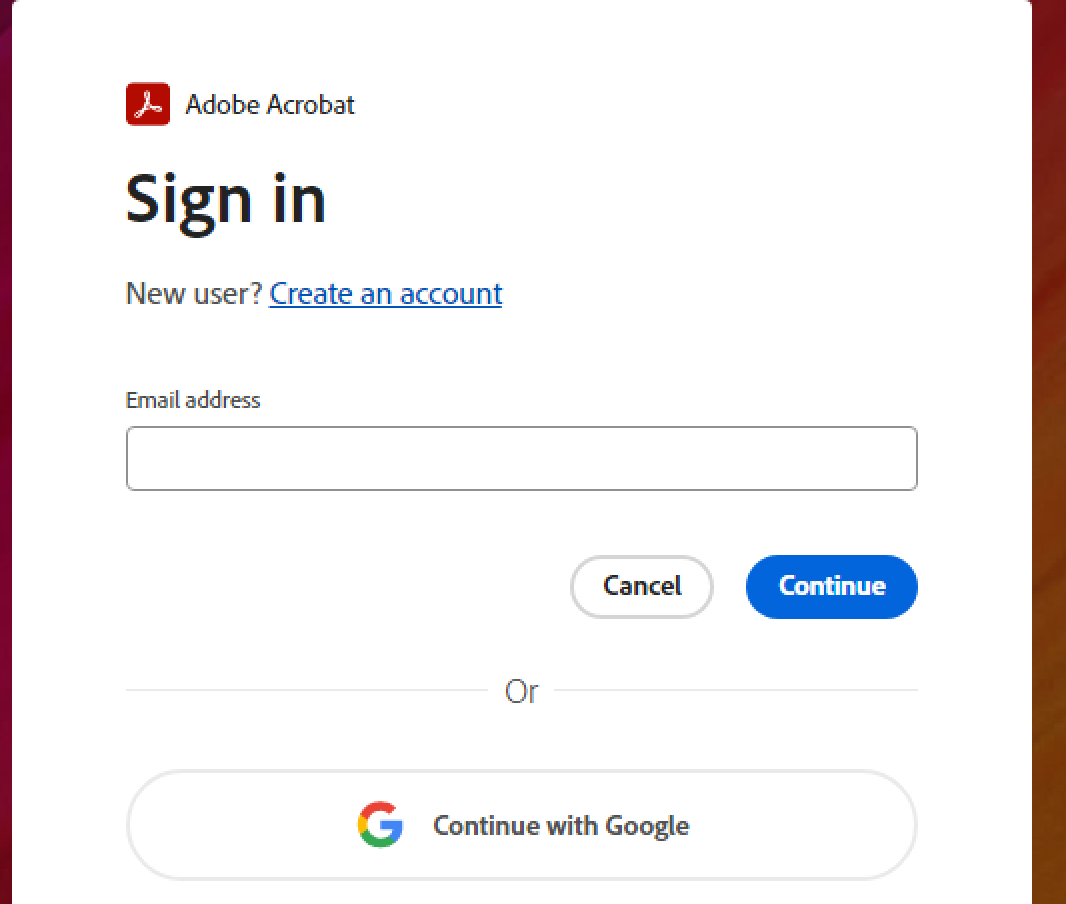
3. Type in your UGA email into the email box
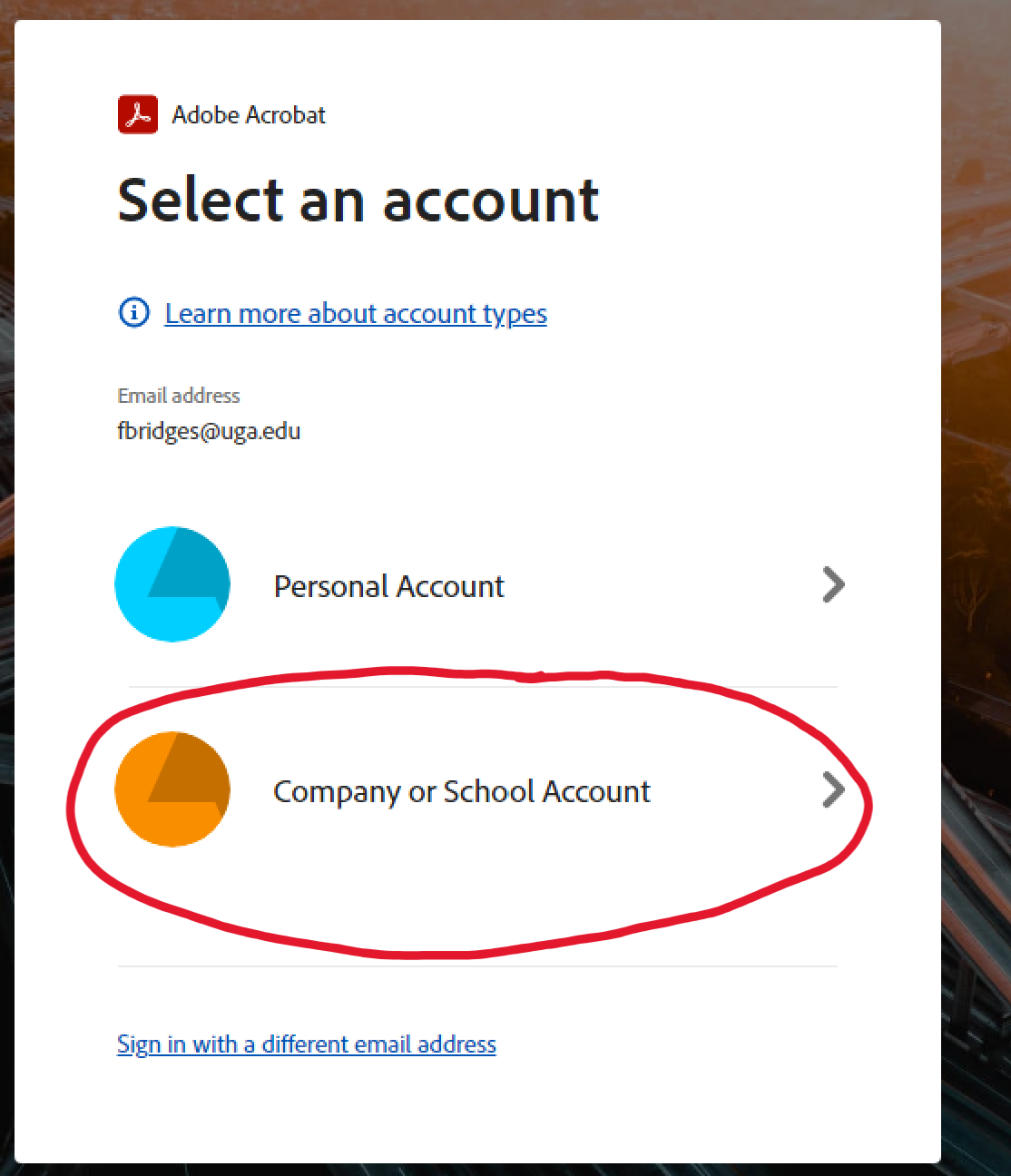
4. It will ask you if you are trying to log into a Personal Account or a Company or School Account. Choose the Company or School Account.
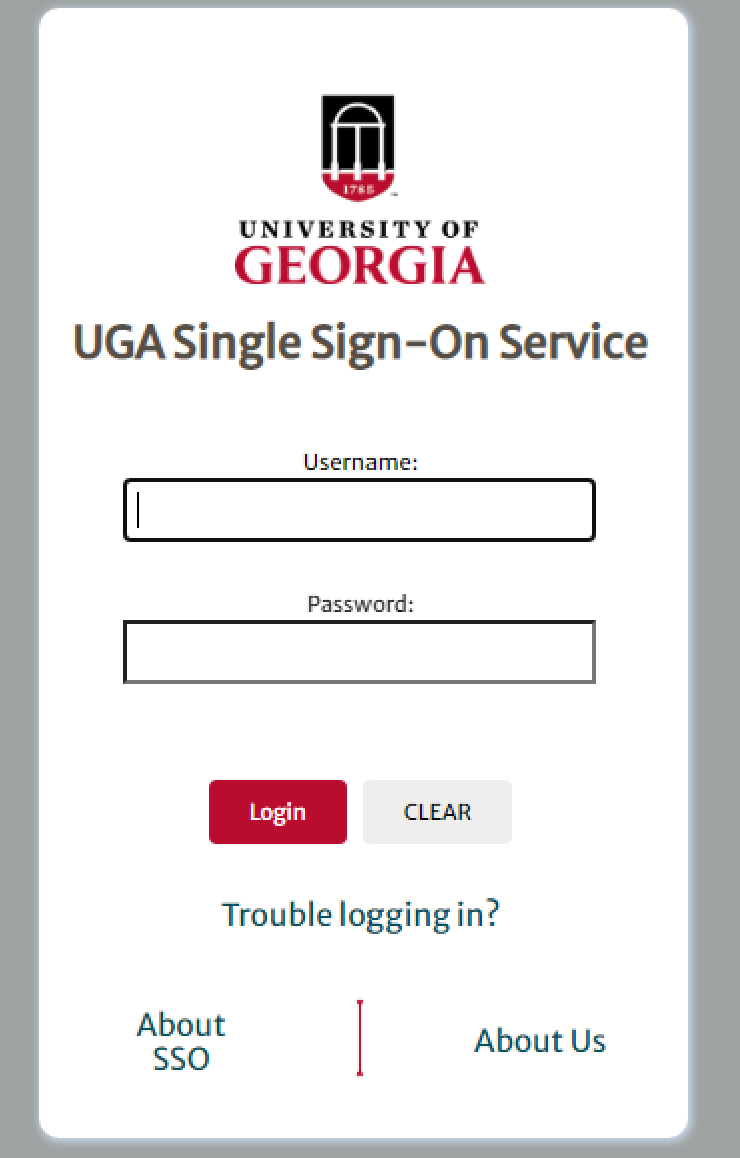
5. Log in using your UGA log in
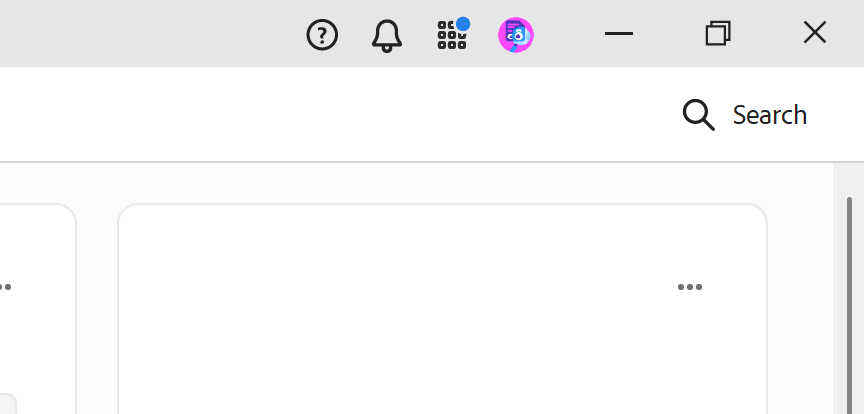
6. Once you are logged in the “Free Trial” button to disappear.
7. You should get a pop up that asks you to update the app to install the premium features. Press “Upgrade”.
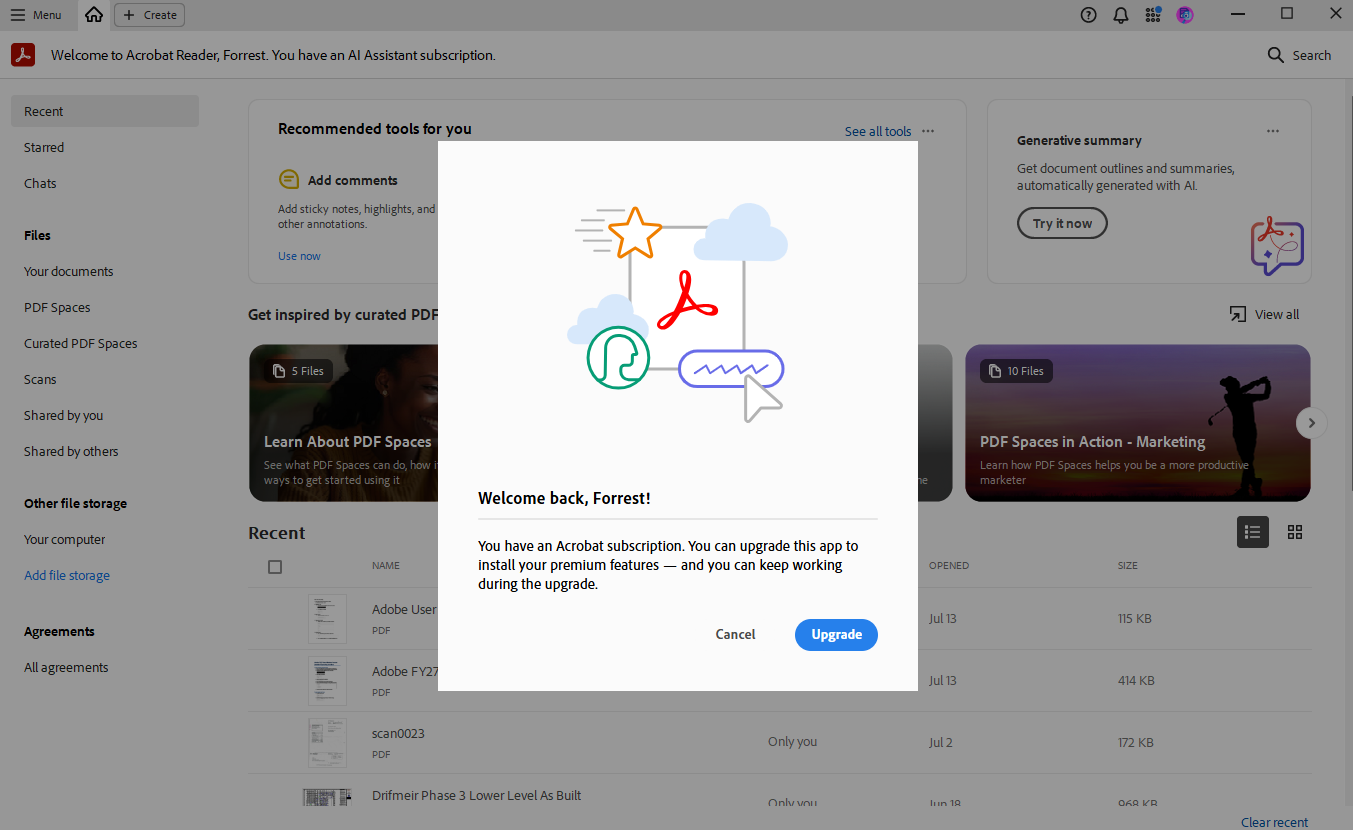
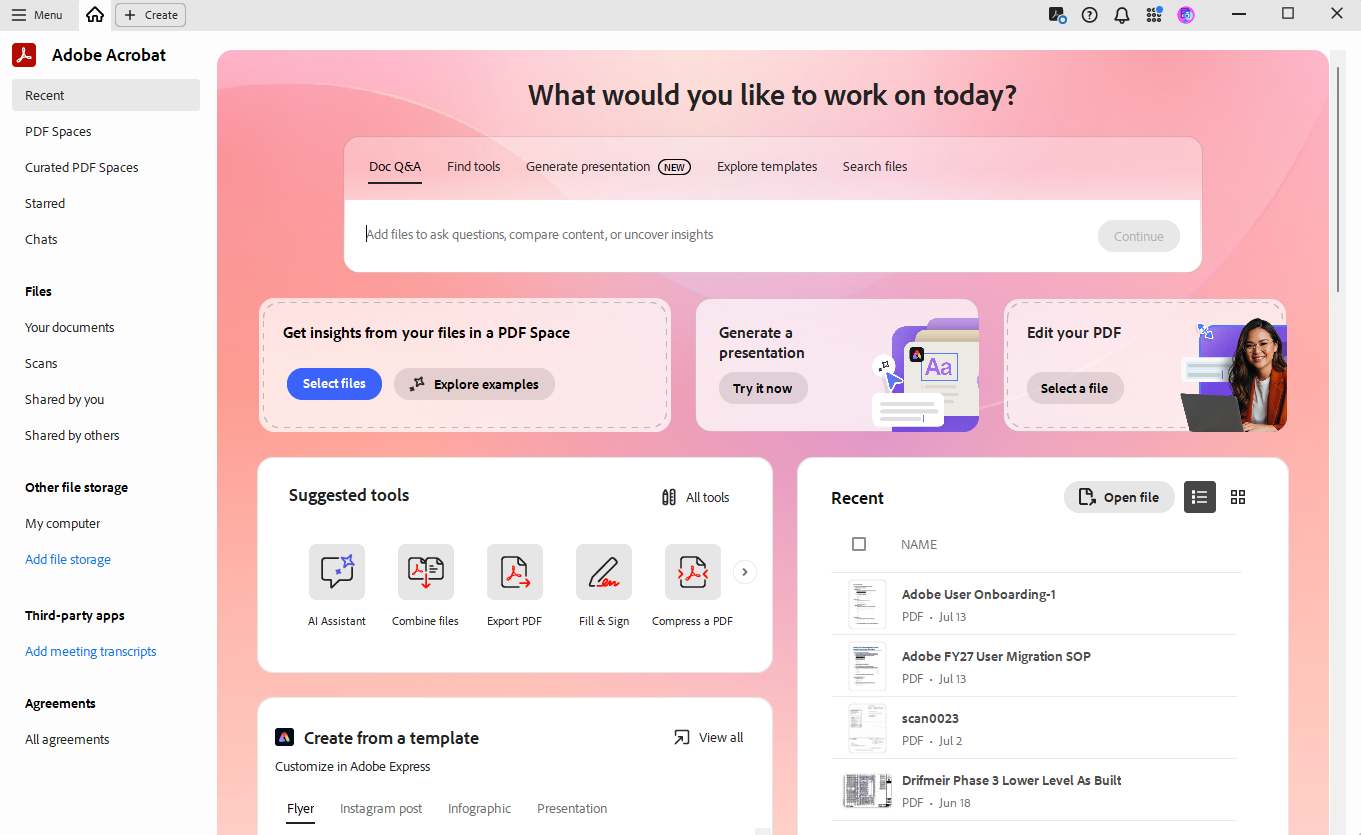
8. This is what the Adobe Acrobat screen will look like once it has been upgraded!